Configure Product Feeds
flowchart LR;
    Wineally-->Configuration;
    Configuration-->FeedSetup;
You set up your feed subscription in the Wineally Business System where you’ll also provide mapping information from your source system XML format (product feed) to the Wineally format.
Configure Product Feed Source
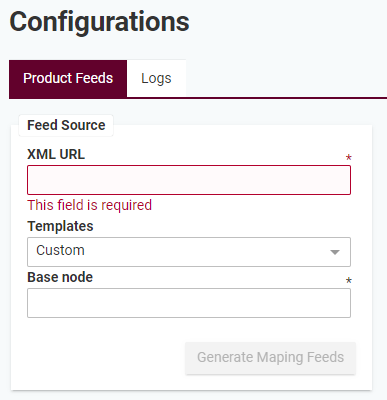
Provide Feed URL
The feed URL should be added without any additional utm-tags or other query parameters.
Example: https://wineally.com/products/all-products.xml
Select Type of Feed
Start by selecting your feed type:
- Vivino XML feed
- Custom XML feed
Vivino XML feeds are automatically mapped to the Wineally data format. For the Custom XML format you can map your XML format to the Wineally format manually for greater flexibility.
See documentation page about product feed mapping for information about Vivino and Custom mappings.
Options
For the first import we recommend using the Generate log only setting. This enables you to test your feed and review the results before making changes to your wine cellar.
When the feed has been tested successfully, select Schedule import and de-select Generate log only to start processing the feed automatically on a daily basis.
Manual execution
Click on the Import Now button to force a manual exacution of your configuration. Note that if you have not selected ‘Generate log only* your wine cellar will be updated with the feed data Wineally could locate in the product feed.
When your first import job is done, review the results in the product feed log